Troubleshooting WebGL Support
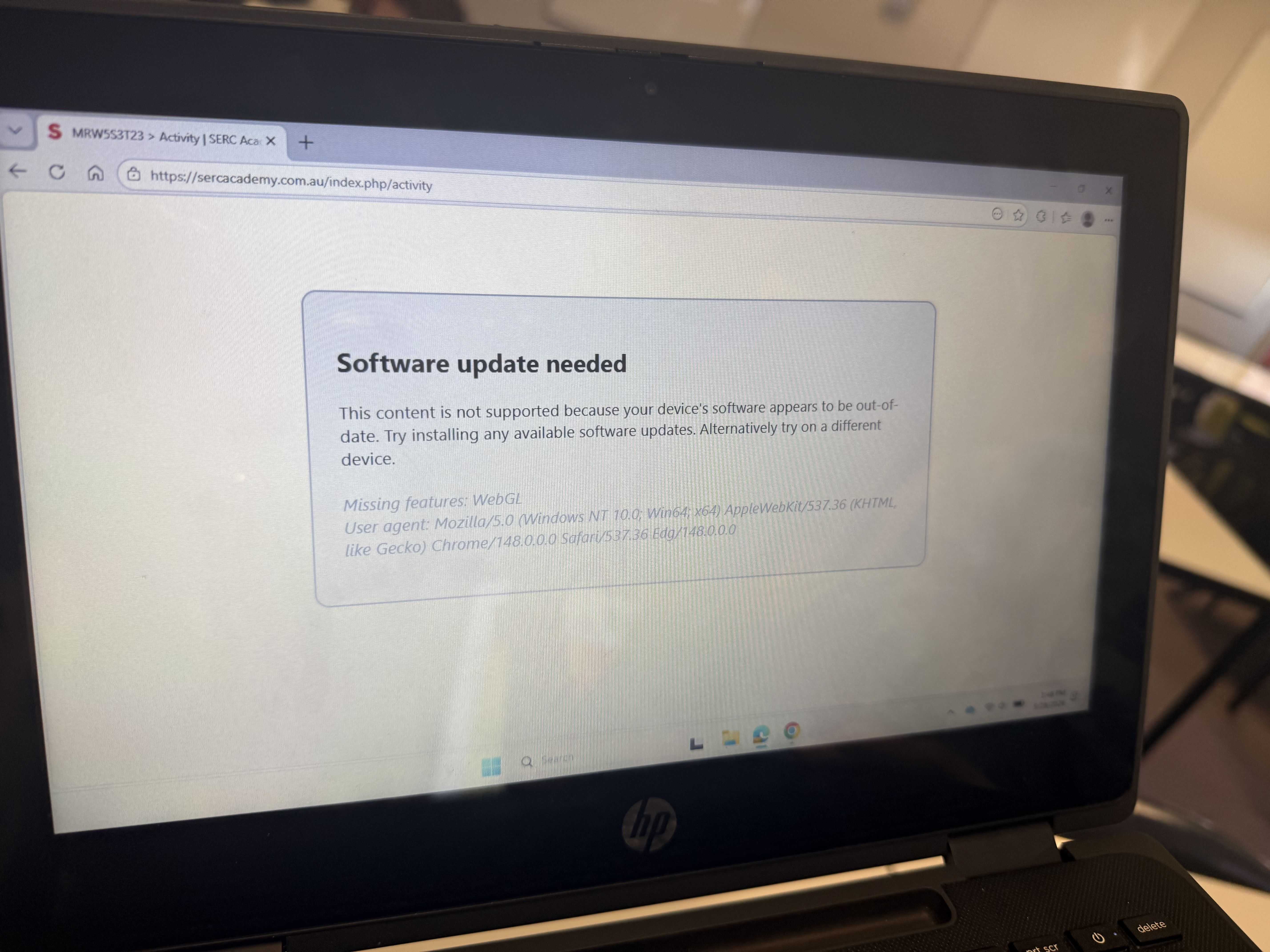
On some devices, the activity page may show a Software update needed message with Missing features: WebGL. This means the browser cannot run WebGL, which is the graphics feature required to display the activity content.
Before changing any other settings, open get.webgl.org using the same browser.
If the page shows the WebGL cube animation, the browser supports WebGL. Open the SERC Academy activity page again, then refresh the page.
If the page does not show the WebGL animation or displays an error message, continue by checking the browser settings.
Google Chrome
- Open Chrome.
- Type
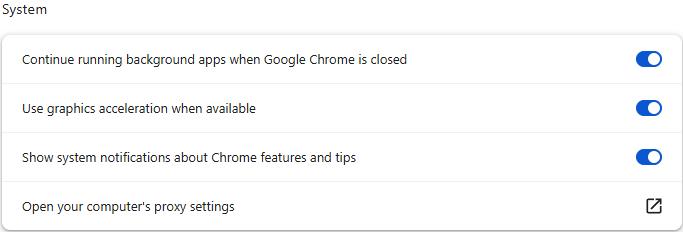
chrome://settings/systemin the address bar. - Turn on Use graphics acceleration when available. In some Chrome versions, this setting may appear as Use hardware acceleration when available.
- Select Relaunch, or close and reopen Chrome.
- Open get.webgl.org again to test WebGL.
- If WebGL is working, open the SERC Academy activity page again.
Microsoft Edge
- Open Microsoft Edge.
- Type
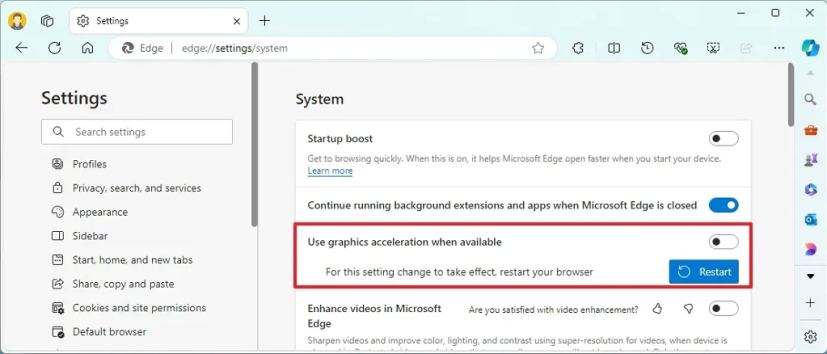
edge://settings/systemin the address bar. - Open System and performance.
- Turn on Use graphics acceleration when available.
- Restart Edge if prompted.
- Open get.webgl.org again to test WebGL.
- If WebGL is working, open the SERC Academy activity page again.
Chromebook
For Chromebooks, WebGL support is not tied to a specific product line such as Chromebook Plus. WebGL is a Chrome and ChromeOS browser capability. Chrome has supported WebGL since Chrome 9, and the first commercial Chromebooks launched after that generation, so any Chromebook that is still receiving ChromeOS updates should normally support WebGL.
If WebGL is not working on a Chromebook:
- Open get.webgl.org in Chrome.
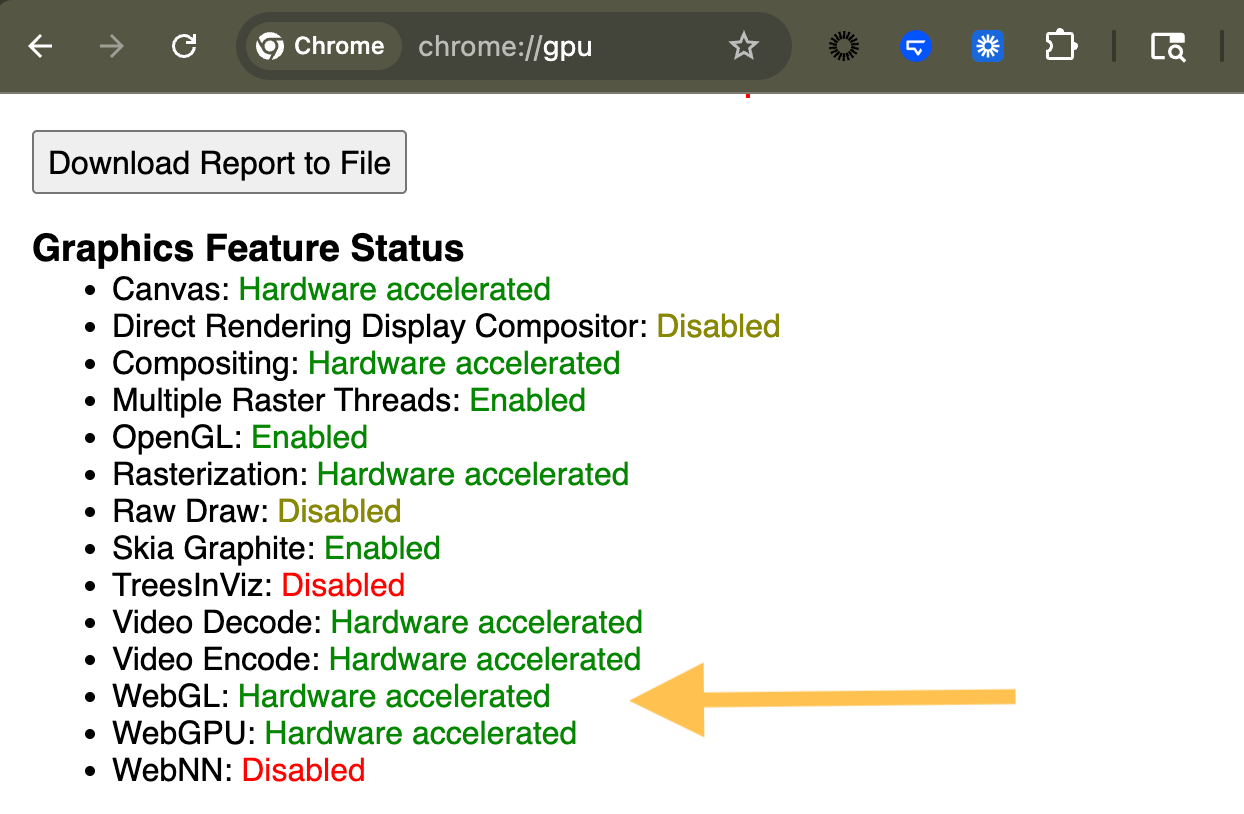
- If the WebGL cube does not appear, type
chrome://gpuin the address bar. - Under Graphics Feature Status, check whether WebGL or WebGL2 is listed as Hardware accelerated.
- Open Settings.
- Go to About ChromeOS.
- Select Check for updates.
- Restart the Chromebook after the update is installed.
- Test again at get.webgl.org, then reopen the SERC Academy activity page.
If the Chromebook is managed by a school or organisation, some graphics settings may be controlled by device policy and may not be visible to the student. In that case, contact the school IT administrator or the SERC Academy team.
Very old Chromebooks that have reached their final ChromeOS software update may not reliably support all current browser features. Check Settings > About ChromeOS > Additional details > Update schedule to confirm whether the Chromebook is still receiving updates.
If WebGL still does not work after graphics acceleration is enabled, restart the device, make sure the browser is updated to the latest version, then try the activity page again.
If the issue still occurs, contact the SERC Academy team and include the following information:
- a screenshot of the error message;
- the test result from get.webgl.org;
- the browser name;
- the browser version;
- for Chromebooks, the ChromeOS version and update schedule status;
- the device or laptop model being used.